Tuesday, 22 November 2011

Forcing a System Crash from the Keyboard

Most of the following keyboards can cause a system crash directly:
PS/2 keyboards connected on i8042prt ports
This feature is available in Windows 2000 and later versions of Windows operating system.
USB keyboards
This feature is available in:
  • Windows Server 2003 Service Pack 1 if the hotfix available with KB 244139 is installed.
  • Windows Server 2003 (with Service Pack 2 or later).
  • Windows Server 2008 Service Pack 1 if the hotfix available with KB 971284 is installed.
  • Windows Server 2008 (with Service Pack 2 or later).
  • Windows 7 and later versions of Windows operating system.
You must ensure the following three settings before the keyboard can cause a system crash:
  1. If you wish a crash dump file to be written, you must enable such dump files, choose the path and file name, and select the size of the dump file. For more information, see Enabling a Kernel-Mode Dump File.
  2. With PS/2 keyboards, you must enable the keyboard-initiated crash in the registry. In the registry key HKEY_LOCAL_MACHINE\System\CurrentControlSet\Services\i8042prt\Parameters, create a value named CrashOnCtrlScroll, and set it equal to a REG_DWORD value of 0x01.
  3. With USB keyboards, you must enable the keyboard-initiated crash in the registry. In the registry key HKEY_LOCAL_MACHINE\System\CurrentControlSet\Services\kbdhid\Parameters, create a value named CrashOnCtrlScroll, and set it equal to a REG_DWORD value of 0x01.
You must restart the system for these settings to take effect.
After this is completed, the keyboard crash can be initiated by using the following hotkey sequence: Hold down the rightmost CTRL key, and press the SCROLL LOCK key twice.
The system then calls KeBugCheck and issues bug check 0xE2 (MANUALLY_INITIATED_CRASH). Unless crash dumps have been disabled, a crash dump file is written at this point.
If a kernel debugger is attached to the crashed machine, the machine will break into the kernel debugger after the crash dump file has been written.
For more information on using this feature, refer to the article Generate a memory dump file by using the keyboard (KB 244139).

Defining Alternate Keyboard Shortcuts to Force a System Crash from the Keyboard

You can configure values under the following registry subkeys for different keyboard shortcut sequences to generate the memory dump file:
  • For PS/2 keyboards:
    HKEY_LOCAL_MACHINE\SYSTEM\CurrentControlSet\Services\i8042prt\crashdump
  • For USB keyboards:
    HKEY_LOCAL_MACHINE\SYSTEM\CurrentControlSet\Services\kbdhid\crashdump
You must create the following registry REG_DWORD values under these subkeys:
Dump1Keys
The Dump1Keys registry value is a bit map of the first hot key to use. For example, instead of using the rightmost CTRL key to initiate the hot key sequence, you can set the first hot key to be the leftmost SHIFT key. The values for the first hot key are described in the following table.
ValueFirst key used in the keyboard shortcut sequence
0x01
Rightmost SHIFT key
0x02
Rightmost CTRL key
0x04
Rightmost ALT key
0x10
Leftmost SHIFT key
0x20
Leftmost CTRL key
0x40
Leftmost ALT key
Note  You can assign Dump1Keys a value that enables one or more keys as the first key used in the keyboard shortcut sequence. For example, assign Dump1Keys a value of 0x11 to define both the rightmost and leftmost SHIFT keys as the first key in the keyboard shortcut sequence.
Dump2Key
The Dump2Key registry value is the index into the scancode table for the keyboard layout of the target computer. The following is the actual table in the driver.
const UCHAR keyToScanTbl[134] = { 
        0x00,0x29,0x02,0x03,0x04,0x05,0x06,0x07,0x08,0x09,
        0x0A,0x0B,0x0C,0x0D,0x7D,0x0E,0x0F,0x10,0x11,0x12,
        0x13,0x14,0x15,0x16,0x17,0x18,0x19,0x1A,0x1B,0x00,
        0x3A,0x1E,0x1F,0x20,0x21,0x22,0x23,0x24,0x25,0x26,
        0x27,0x28,0x2B,0x1C,0x2A,0x00,0x2C,0x2D,0x2E,0x2F,
        0x30,0x31,0x32,0x33,0x34,0x35,0x73,0x36,0x1D,0x00,
        0x38,0x39,0xB8,0x00,0x9D,0x00,0x00,0x00,0x00,0x00,
        0x00,0x00,0x00,0x00,0x00,0xD2,0xD3,0x00,0x00,0xCB,
        0xC7,0xCF,0x00,0xC8,0xD0,0xC9,0xD1,0x00,0x00,0xCD,
        0x45,0x47,0x4B,0x4F,0x00,0xB5,0x48,0x4C,0x50,0x52,
        0x37,0x49,0x4D,0x51,0x53,0x4A,0x4E,0x00,0x9C,0x00,
        0x01,0x00,0x3B,0x3C,0x3D,0x3E,0x3F,0x40,0x41,0x42,
        0x43,0x44,0x57,0x58,0x00,0x46,0x00,0x00,0x00,0x00,
        0x00,0x7B,0x79,0x70 };
Note   Index 124 (sysreq) is a special case because an 84-key keyboard has a different scan code.
If you define alternate keyboard shortcuts to force a system crash from a USB or PS/2 keyboard, you must either set the CrashOnCtrlScroll registry value to 0 or remove it from the registry.

Limitations

It is possible for a system to freeze in such a way that the keyboard shortcut sequence will not work. However, this should be a very rare occurrence. Using the keyboard shortcut sequence to initiate a crash will work even in many instances where CTRL+ALT+DELETE does not work.
Forcing a system crash from the keyboard does not work if the computer stops responding at a high interrupt request level (IRQL). This limitation exists because the Kbdhid.sys driver, which allows the memory dump process to run, operates at a lower IRQL than the i8042prt.sys driver.

How ro check the remote server uptime

How to check the remote server uptime
 1) For local server

Use the command c:\uptime

2) For remote server

use the command c:\uptime \\server name


3) For multiple servers


Create a folder by name uptime in c:\uptime

Copy the below content and paste it in a notepad and save it as .vbs (ex: uptime.vbs) in c:\uptime

create 2 blank text files by name input.txt and output.txt

copy the uptime.exe file to C:\uptime folder

now you have 4 files in c:\uptime folder

C:\uptime\input.txt,

C:\uptime\output.txt

C:\uptime\uptime.exe

C:\uptime\uptime.vbs

---------------------------------------------------------------------------------------------------

Set fs = CreateObject ("scripting.filesystemobject")
Set ts = CreateObject ("WScript.shell")
Set ms = fs.OpenTextFile ("C:\Uptime\input.txt", 1, True)
Set js = fs.OpenTextFile ("D:\Uptime\output.txt", 2, True)

Do While ms.AtEndOfLine True
strcom = ms.ReadLine
set us = ts.Exec ("c:\Uptime\uptime "& strcom)
rs = us.StdOut.ReadAll

js.WriteLine rs

js.WriteBlankLines (1)

Loop
-------------------------------------------------------------------------------------------------


when you need to check the multiple servers uptime, just add the servers list in notepad and run uptime.vbs from command line( or right click on uptime.vbs and click open with command prompt.


Check the output.txt file to see the multiple servers uptime happy

Monday, 14 November 2011

9Awesome SSH Tricks


Sorry for the lame title. I was thinking the other day, about how awesome SSH is, and how it's probably one of the most crucial pieces of technology that I use every single day. Here's a list of 10 things that I think are particularly awesome and perhaps a bit off the beaten path.

SSH is, and how it's probably one of the most crucial pieces of technology that I use every single day. Here's a list of 10 things that I think are particularly awesome and perhaps a bit off the beaten path.
 There are some user-submitted ssh-tricks on the wiki now! Please feel free to add your favorites. Also the hacker news threadmight be helpful for some.

SSH Config

I used SSH regularly for years before I learned about the config file, that you can create at ~/.ssh/config to tell how you want ssh to behave.
Consider the following configuration example:
  Host example.com *.example.net
     User root
  Host dev.example.net dev.example.net 
     User shared
     Port 220 
  Host test.example.com 
     User root
     UserKnownHostsFile /dev/null
     StrictHostKeyChecking no
  Host t
     HostName test.example.org
  Host *
     Compression yes
     CompressionLevel 7
     Cipher blowfish
     ServerAliveInterval 600
     ControlMaster auto
     ControlPath /tmp/ssh-%r@%h:%p
I'll cover some of the settings in the "Host *" block, which apply to all outgoing ssh connections, in other items in this post, but basically you can use this to create shortcuts with the ssh command, to control what username is used to connect to a given host, what port number, if you need to connect to an ssh daemon running on a non-standard port. See "man ssh_config" for more information.

Control Master/Control Path

This is probably the coolest thing that I know about in SSH. Set the "ControlMaster" and "ControlPath" as above in the ssh configuration. Anytime you try to connect to a host that matches that configuration a "master session" is created. Then, subsequent connections to the same host will reuse the same master connection rather than attempt to renegotiate and create a separate connection. The result is greater speed less overhead.
This can cause problems if you' want to do port forwarding, as this must be configured on the original connection, otherwise it won't work.

SSH Keys

While ControlMaster/ControlPath is the coolest thing you can do with SSH, key-based authentication is probably my favorite. Basically, rather than force users to authenticate with passwords, you can use a secure cryptographic method to gain (and grant) access to a system. Deposit a public key on servers far and wide, while keeping a "private" key secure on your local machine. And it just works.
You can generate multiple keys, to make it more difficult for an intruder to gain access to multiple machines by breaching a specific key, or machine. You can specify specific keys and key files to be used when connected to specific hosts in the ssh config file (see above.) Keys can also be (optionally) encrypted locally with a pass-code, for additional security. Once I understood how secure the system is (or can be), I found my self thinking "I wish you could use this for more than just SSH."

SSH Agent

Most people start using SSH keys because they're easier and it means that you don't have to enter a password every time that you want to connect to a host. But the truth is that in most cases you want to have unencrypted private keys that have meaningful access to systems because once someone has access to a copy of the private key the have full access to the system. That's not good.
But the truth is that typing in passwords is a pain, so there's a solution: the ssh-agent. Basically one authenticates to the ssh-agent locally, which decrypts the key and does some magic, so that then whenever the key is needed for the connecting to a host you don't have to enter your password. ssh-agent manages the local encryption on your key for the current session.

SSH Reagent

I'm not sure where I found this amazing little function but it's great. Typically, ssh-agents are attached to the current session, like the window manager, so that when the window manager dies, the ssh-agent loses the decrypted bits from your ssh key. That's nice, but it also means that if you have some processes that exist outside of your window manager's session (e.g. Screen sessions) they loose the ssh-agent and get trapped without access to an ssh-agent so you end up having to restart would-be-persistent processes, or you have to run a large number of ssh-agents which is not ideal.
Enter "ssh-reagent." stick this in your shell configuration (e.g. ~/.bashrc or ~/.zshrc) and run ssh-reagent whenever you have an agent session running and a terminal that can't see it.
  ssh-reagent () {
          for agent in /tmp/ssh-*/agent.*; do
                 export SSH_AUTH_SOCK=$agent
                 if ssh-add -l 2>&1 > /dev/null; then
                         echo Found working SSH Agent:
                         ssh-add -l
                         return
                 fi
         done
         echo Cannot find ssh agent - maybe you should reconnect and forward it?
  }
It's magic.

SSHFS and SFTP

Typically we think of ssh as a way to run a command or get a prompt on a remote machine. But SSH can do a lot more than that, and the OpenSSH package that probably the most popular implementation of SSH these days has a lot of features that go beyond just "shell" access. Here are two cool ones:
SSHFS creates a mountable file system using [FUSE][] of the files located on a remote system over SSH. It's not always very fast, but it's simple and works great for quick operations on local systems, where the speed issue is much less relevant.
SFTP, replaces FTP (which is plagued by security problems,) with a similar tool for transferring files between two systems that's secure (because it works over SSH) and is just as easy to use. In fact most recent OpenSSH daemons provide SFTP access by default.
There's more, like a full VPN solution in recent versions, secure remote file copy, port forwarding, and the list could go on.

SSH Tunnels

SSH includes the ability to connect a port on your local system to a port on a remote system, so that to applications on your local system the local port looks like a normal local port, but when accessed the service running on the remote machine responds. All traffic is really sent over ssh.
I set up an SSH tunnel for my local system to the outgoing mail server on my server. I tell my mail client to send mail to localhost server (without mail server authentication!), and it magically goes to my personal mail relay encrypted over ssh. The applications of this are nearly endless.

Keep Alive Packets

The problem: unless you're doing something with SSH it doesn't send any packets, and as a result the connections can be pretty resilient to network disturbances. That's not a problem, but it does mean that unless you're actively using an SSH session, it can go silent causing your local area network's NAT to eat a connection that it thinks has died, but hasn't. The solution is to set the "ServerAliveInterval [seconds]" configuration in the SSH configuration so that your ssh client sends a "dummy packet" on a regular interval so that the router thinks that the connection is active even if it's particularly quiet. It's good stuff.

/dev/null .known_hosts

A lot of what I do in my day job involves deploying new systems, testing something out and then destroying that installation and starting over in the same virtual machine. So my "test rigs" have a few IP addresses, I can't readily deploy keys on these hosts, and every time I redeploy SSH's host-key checking tells me that a different system is responding for the host, which in most cases is the symptom of some sort of security error, and in most cases knowing this is a good thing, but in some cases it can be very annoying.
These configuration values tell your SSH session to save keys to `/dev/null (i.e. drop them on the floor) and to not ask you to verify an unknown host:
 UserKnownHostsFile /dev/null
 StrictHostKeyChecking no
This probably saves me a little annoyance and minute or two every day or more, but it's totally worth it. Don't set these values for hosts that you actually care about.

Tuesday, 18 October 2011

Download 9 Free e-Books from Microsoft on Win7, WP7, VS2010, and More

Free ebook


Enlarge picture
Microsoft Press is offering no less than nine free ebooks 
for download on a variety of topics, from the latest 
iterations of the Windows client and the Office 
productivity suite to the first Windows Phone 
OS and to the company’s developer platform.


At the bottom of this article users will be able to 
find the complete list with all the free resources offered by the Redmond along with the 
links necessary to download all the goodies.


Of course, those familiar with Microsoft Press know that this is not the first time that 
the software giant has shared ebooks with the public, free of charge.


The latest resources are packaged in no less than nine books designed to 
help customers make the best out of a range of Microsoft products and technologies.


The most recent free ebook offered by the company is set up to streamline 
the programming of applications designed for Windows Phone 7.


There are two Widnows 7 ebooks, and one focused on Windows Server 2008 R2. 
Products such as Visual Studio 2010, Office 2010, SQL Server 2008 R2 but also 
virtualization solutions are also covered.


Here is the list of free ebooks courtesy of Microsoft Press:


Free ebook: Programming Windows Phone 7, by Charles Petzold 
(a 24-chapter gift from the Windows Phone 7 team and Microsoft Press)


Free ebook: Moving to Microsoft Visual Studio 2010 
(10 chapters by Patrice Pelland, Pascal Paré, and Ken Haines)
 Free ebook: Introducing Microsoft SQL Server 2008 R2 
(10 chapters by Ross Mistry and Stacia Misner)


Free ebook: Own Your Future: Update Your Skills with Resources and Career 
Ideas from Microsoft 
(8 chapters by Katherine Murray)


Free ebook: Understanding Microsoft Virtualization Solutions (Second Edition) 
(6 chapters by Mitch Tulloch)


Free ebook: First Look Microsoft Office 2010 
(14 chapters by Katherine Murray)


Free ebook: Windows 7 troubleshooting tips 
(short ebook by Mitch Tulloch)


Free ebook: Introducing Windows Server 2008 R2 
(9 chapters by Charlie Russel and Craig Zacker)


Free ebook: Deploying Windows 7, Essential Guidance 
(10 chapters from the Windows 7 Resource Kit and 6 TechNet articles)

Migrating to Symantec Endpoint Protection 11.0 RU6

Things to know to ensure a successful migration
The following is a list of critical information that you need to know in order for your migration to succeed.

Migration paths
Symantec Endpoint Protection 11.0.6 (RU6) can migrate seamlessly over the following:
    • Symantec Endpoint Protection 11.0.780.1109/11.0.776.942 (RTM), 11.0.1000.1375 (MR1), 11.0.1006 (MR1 MP1), 11.0.2000.1567 (MR2), 11.0.2010.25 (MR2 MP1), 11.0.2020.56 (MR2 MP2), 11.0.3001.2224 (MR3), 11.0.4000.2295 (MR4), 11.0.4010.19 (MR4 MP1), 11.0.4014.26 (MR4 MP1a), 11.0.4202.75 (MR4 MP2), and 11.0.5002.333 (RU5)
    • Symantec AntiVirus client and server 9.x and later
    • Symantec Client Security client and server 2.x and later

For more information, see the Symantec Knowledge Base article Migration paths for Symantec Endpoint Protection 11.0.

Supported platforms
Supported platforms for Symantec Endpoint Protection 11.0.6 (RU6) are listed in the document System requirements for Symantec Endpoint Protection and Symantec Network Access Control 11.0.6.

Downloading the Symantec Endpoint Protection 11.0.6000.550 or 562 RU6 or RU6a Release Update
The installer package to upgrade Symantec Endpoint Protection is available from the Symantec FileConnect site: https://fileconnect.symantec.com/

Migration overview
The following table gives an overview of the migration process for each component of Symantec Endpoint Protection:
Component Migration overview
Symantec Endpoint Protection Manager When you migrate a server, the installation automatically detects and configures it appropriately.

You do not need to uninstall management servers before you install the new version. The overinstall process saves legacy settings, and then upgrades to the latest version.
Symantec Endpoint Protection
Clients
When you migrate a client, the overinstall automatically detects the client, and migrates and installs it appropriately. You do not need to uninstall existing clients before you install the new version.


Overview of the migration process
Migration to the current version of Symantec Endpoint Protection includes the following steps in order:
  • Create a migration plan
    Before you begin to install the Symantec Endpoint client, manager, and any administration upgrades, you should have a solid understanding of your network topology and a streamlined plan to maximize the protection of the resources on your network during the upgrade. Symantec strongly recommends that you migrate the entire network to the current version rather than managing multiple versions of Symantec Endpoint Protection.
  • Backup up the database
    Before you upgrade, you should back up the database.
  • Disable replication
    If your site uses replication, you must disable replication before upgrading Symantec Endpoint Protection Manager. You must disable replication at each site that replicates.
  • Stop the Symantec Endpoint Protection Manager service
    Before you upgrade, you must manually stop the Symantec Endpoint Protection Manager service on every management server in your site. After you upgrade, the service is started automatically.
    WARNING: You must stop the Symantec Endpoint Protection Manager service before you upgrade, or you will corrupt your existing installation of Symantec Endpoint Protection Manager.
  • Upgrade the Symantec Endpoint Protection Manager
    You do not need to uninstall management servers before you install the new version. The overinstall process saves legacy settings, and then upgrades to the latest version.
  • Enabling replication after migration
    After you migrate all servers that used replication, including the servers that were configured for failover and load balancing, you must re-enable replication. After migration, you add a replication partner to enable replication. You only need to add replication partners on the computer on which you first installed the management server. Replication partners automatically appear on the other management servers.
  • Upgrade the Symantec Endpoint Protection Clients
    You do not need to uninstall previous clients before you install the new version. The overinstall process saves legacy settings, and then upgrades to the latest version.


Backing up the database
Before you upgrade, you should back up the database.
    To back up the database
    1. Click Start > Programs > Symantec Endpoint Protection Manager > Database Back Up and Restore.
    2. In the Database Backup and Restore dialog box, click Back Up.
    3. When asked "Are you sure you want to back up the database?" click Yes.
    4. When you see the message "The database has been backed up successfully," click OK.
    5. In the Database Backup and Restore dialog box, click Exit.

Disabling replication
If your environment utilizes replication, you must disable replication on all sites prior to upgrading the Symantec Endpoint Protection Manager. You must not re-enable replication between sites until they are running the same version of the software.
    To disable replication
    1. Log on to the Symantec Endpoint Protection Manager Console.
    2. On the Admin tab, click the blue Servers tab at the bottom of the pane.
    3. On the Servers tab, in the left pane, expand Local Site > Replication Partners.
    4. For each site that is listed under Replication Partners, right-click the site, and then click Delete.
    5. In the Delete Partner prompt, click Yes.
    6. Log off of the console, and repeat this procedure at all sites that replicate data.
Stopping the Symantec Endpoint Protection Manager service
Before you upgrade, you must manually stop the Symantec Endpoint Protection Manager service on every management server in your site. After you upgrade, the service is started automatically.

WARNING: You must stop the Symantec Endpoint Protection Manager service before you perform this procedure or you will corrupt your existing installation of Symantec Endpoint Protection Manager.

    To stop the Symantec Endpoint Protection service
    1. Click Start > Settings > Control Panel > Administrative Tools.
    2. Double Click Services to launch the Services MMC snap-in.
    3. In the Services window, under Name, scroll to and right-click Symantec Endpoint Protection Manager.
    4. Click Stop.
    5. Close the Services window.
      Warning: You must close the Services window, or your upgrade may fail.
    6. Repeat this procedure for all Symantec Endpoint Protection Managers.
Upgrading the Symantec Endpoint Protection Manager
You must upgrade all Symantec Endpoint Protection Managers on which you stopped the Symantec Endpoint Protection service.
    To upgrade Symantec Endpoint Protection Manager
    1. Download and unzip the Release Update.
    2. Browse to the location where you unzipped the Release Update.
    3. Double-click setup.exe to start the installation.
    4. In the Symantec Endpoint Protection panel, click Install Symantec Endpoint Protection Manager.
    5. In the Install Wizard Welcome panel, click Next.
    6. At the License Agreement panel, select "I accept..." then click Next.
    7. At the Ready to install the Program panel, click Install.
    8. In the Install Wizard Completed panel, click Finish.
    9. In the Upgrade Wizard Welcome panel, click Next.
    10. In the Information panel, click Continue.
    11. When the upgrade completes, click Next.
    12. In the Upgrade Succeeded panel, click Finish.

Repeat the above steps on all other Symantec Endpoint Protection Managers on which you stopped the Symantec Endpoint Protection Manager service.
Enabling replication after migration
After you migrate all servers that used replication including the servers that were configured for failover and load balancing, you must re-enable replication. After migration, you add a replication partner to enable replication. You only need to add replication partners on the computer on which you first installed the management server. Replication partners automatically appear on the other management servers.
    To enable replication after migration
    1. Log on to the Symantec Policy Management Console if you are not logged on.
    2. On the Admin tab, click the blue Servers tab at the bottom of the pane.
    3. On the Servers tab, in the left pane, expand Local Site, and then click Add Replication Partner.
    4. In the Add Replication Partner panel, click Next.
    5. In the Remote Site Information panel, enter the identifying information about the replication partner, enter the authentication information, and then click Next.
    6. In the Schedule Replication panel, set the schedule for when replication occurs automatically, and then click Next.
    7. In the Replication of Log Files and Client Packages panel, check the items to replicate, and then click Next.
      (Replicating packages generally involves large amounts of traffic and storage requirements.)
    8. To complete the Add Replication Partner Wizard panel, click Finish.
    9. Repeat this procedure for all computers that replicate data with this computer.
Upgrading the Symantec Endpoint Protection clients
The easiest way to migrate Symantec Endpoint Protection clients is by using the auto-upgrade feature. All other client software deployment methods are supported, but the auto-upgrade approach is the easiest way. The client migration installation can take up to 30 minutes. It is recommended to migrate when most users are not logged on to their computers.

Note: Test this migration approach before rolling out migration to a large number of computers. Create a new group and place a small number of client computers in that group for testing purposes.

    To migrate client software
    1. Log on to the newly migrated Symantec Endpoint Protection Manager Console.
    2. Click Admin > Install Packages.
    3. In the lower-left pane, under Tasks, click Upgrade Groups with Package.
    4. In the Welcome to the Upgrade Groups Wizard panel, click Next.
    5. In the Select Client Install Package panel, all existing client packages are listed in the drop down box. Select one of the following:
      • Symantec Endpoint Protection .
      • Symantec Network Access Control .
    6. Click Next.
    7. In the Specify Groups panel, check one or more groups that contain the client computers to be migrated, then click Next.
    8. In the Package Upgrade Settings panel, check Download client from the management server.
    9. Click Upgrade Settings.
    10. In the Add Client Install Package dialog box, on the General tab, specify whether or not to keep existing client features or specify new ones, then configure a schedule for when to migrate the client computers. Under the Notification tab, specify a message to display to users during the migration.
      • If the clients in the group run a version of Symantec Endpoint Protection previous to MR2, turn off scheduling. Scheduling is on by default when a new client install package is added to a group. If scheduling is turned on, the upgrade fails. To turn off scheduling, in the Add Client Install Package dialog box, uncheck Upgrade Schedule.
    11. For details about settings on these tabs, click Help.
    12. Click OK.
    13. In the Upgrade Groups Wizard dialog box, click Next.
    14. In the Upgrade Groups Wizard Complete panel, click Finish.
Note: Client computers that take a long time to automatically upgrade to Release Update 6 (RU6) may need to be restarted. This occurs on client computers that run Windows Vista or Windows Server 2008.

Understanding the New Hyper-V Feature in Windows Server 2008

This article was written by MetroTek Geek from Metrotek Solutions, a provider of Computer Help in the DC area.

Microsoft Windows Server 2008 goes virtual with Hyper-V
As part of the Windows Server 2008 launch, Microsoft officially ushers in the era of true Windows server virtualization with Hyper-V. It used to be that virtualization was only found in the datacenters of companies like Amazon and their EC2 computing cloud. Now, Microsoft brings virtualization to the rest of us. Windows Server 2008 and Hyper-V come at the perfect time. With processor architecture shifting away from increasing speeds and towards multiple cores, virtualization will be a significant server-space trend in the near future.
clip_image001
Multiple Servers. One Box. Lots of RAM.
Hyper-V is a type-1 (native) hypervisor, meaning it runs at the root level with direct control over the server’s hardware. Virtual operating systems run independently of each other as partitions just above the Hyper-V stack. With server virtualization, you are essentially running multiple servers on one physical box. Previously, the only server virtualization product available from Microsoft was Virtual Server 2005 which ran as a type-2 (hosted) hypervisor over a macro operating system like Windows Server 2003. This meant the Virtual Server 2005 hypervisor did not have direct hardware access. Guest operating systems within Virtual Server 2005 were essentially threaded applications running through a macro-kernel. Hyper-V replaces the operating system layer and runs as a true type 1 micro-kernel hypervisor.
image  
image  
There are two key requirements for running Hyper-V: an x64 edition of Windows Server 2008 and a 64-bit processor with hardware assisted virtualization extensions (like those found in the Intel VT or AMD-V line of processors). Although Hyper-V requires a 64-bit working environment, guest operating systems may be 32 or 64-bit. Supported guest operating systems (the ones you want virtualized) include the following*:
  • Windows Server 2008
  • Windows Server 2003
  • Windows 2000 Server
  • Windows Vista
  • Windows XP Professional
  • SUSE Linux Enterprise Server 10
    * Other operating systems may work but are not supported in an official capacity
You may have noticed that Hyper-V requires a 64-bit environment. Not surprising given the 4 GB memory limitation found in 32-bit architecture. Four gigabytes divided over multiple instances just doesn’t cut it anymore. Fortunately, Windows Server 2008 Enterprise and Datacenter editions with Hyper-V can support up to 2 terabytes of physical memory and 64 gigabytes of memory per virtual instance. That’s a lot of memory!
Quick Migration and High Availability
Virtualized servers will benefit almost immediately from the ability to quickly migrate from one physical server to another. Microsoft Hyper-V with Quick Migration can save the state of a guest virtual operating system to shared storage, move the storage connection from one server to another, and then restore the image to the new server. Quick Migration works in tandem with the Windows Server 2008 Enterprise and Datacenter Clustering service to provide high availability and rapid disaster-recovery capabilities for your clustered servers. Whether it’s planned (maintenance) or unplanned (disaster recovery), the use of virtualization technology increases server uptime and availability.
Virtual Appliances
The virtual appliance is a promising new development available with virtualization. Vendors can package an operating system and all necessary software to run their product into a virtual “black box” image. This image can then be deployed on different machines even if the configuration is different. Virtual appliances can reduce the installation, configuration, and maintenance costs associated with managing and deploying multiple layers of software. The Microsoft Virtual Hard Disk (VHD) test drive program is a great example. From the VHD website, “The Microsoft Virtual Hard Disk (VHD) format is the common virtualization file format that provides a uniform product support system, and provides more seamless manageability, security, reliability and cost-efficiency for customers. The VHD format captures the entire virtual machine operating system and the application stack in a single file.” As virtualization becomes more prevalent, we’ll begin to see even more innovative and useful virtual appliances.
To V or not to V
Server virtualization represents the next logical step in efficient server-space progression. As servers begin shifting to multi-core architecture and 64-bit platforms, virtualization should become an increasing factor in optimizing server workload performance and reducing costs, especially as server proliferation becomes a growing problem. What was once strictly within the realm of datacenters and development labs is now becoming IT reality. Although there are some performance issues to consider, you might find the advantages of virtualization are well worth the investment.

How to Install or Enable Hyper-V Virtualization in Windows 8


sshot-13
Windows 8 includes Hyper-V as a virtualization platform, but since not everybody will use this feature, it’s not enabled by default. Here’s how to enable it on your Windows 8 PC.

Confusion

Hyper-V only allows you to create a new virtual machine on 64-bit versions of Windows 8, but the client tools are available on both versions. If you are running 32-bit, you’ll be able to do the installation, but you won’t be able to actually use it to create a new VM.

Installing or Enabling Hyper-V

Hyper-V is installed in the add features section of the add or remove programs dialog. To get there we need to open a run box by pressing Win+R, now type appwiz.cpl and press enter. You could also get to the Programs and Features box through Control Panel or the Start search, but this is easy and geeky.
sshot-2
Once the Programs and Features dialog opens, select the Turn Windows features on or off link on the left hand side.
sshot-3
When the Windows Features open, check the Hyper-V option. Then click Ok.
sshot-8
Windows will now add the Hyper-V binaries to your Windows installation.
sshot-7
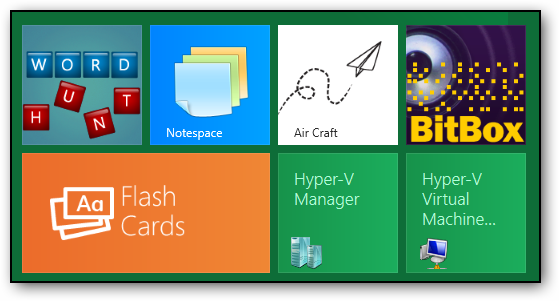
You can now launch the Hyper-V manager from the Metro dashboard.
sshot-6
sshot-10
Browser Name:
Browser Version:
Browser Code Name:
User-Agent: